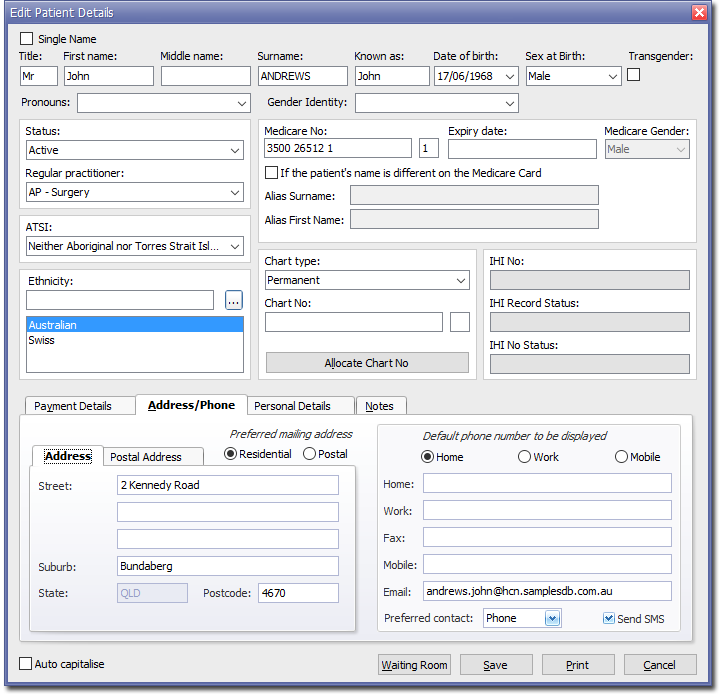
Editing Patient Records
Edit a patient's demographics, contact details, emergency contacts, and so on.
About this task
| Items of interest on this window | |
|---|---|
| Single Name check box | For patients who are known by one name (as distinct from given name and family name), set Single Name . The Surname field changes to Name. Enter the patient's name into this field. The First Name and Middle Name fields are inactivated. |
| Status | Select from:
|
| Ethnicity | See Country-of-Birth and Ethnicity |
| Sex at Birth | Select from:
|
| Pronouns | Select from:
|
| Gender Identity | Select from:
|
| Chart Details | Use this section to record the details of any hard-copy patient files. You can search for patients by their chart number when conducting an Advanced Search. |
| IHI details | The patient's IHI (Individual Healthcare Identifier) number is retrieved automatically and displayed in this field. |
| Medicare Details | Add the patient's Medicare Card details here. If you set Sex at Birth to Intersex/Other or set Transgender, in Medicare Gender, select the patient's gender as recorded on their Medicare Card. If the patient goes by an alias, set If the patient's name is different on the Medicare Card. Record their Alias Surname and Alias First Name. |
| Payment Details tab | Indicate here whether the patient themselves is the payer for their account, or if another person is the payer, and whether they receive any other benefits or concessions. |
| Address/Phone tab | Enter the patient's contact details here, and indicate
their default mailing address and phone number. You can also indicate whether they want to receive SMS notifications from the practice. The default option is to receive them. Indicate the patient's preferred method of contact. See also: Medicare Australia and Post Office Boxes in Pracsoft |
| Personal Details tab | Indicate here the details of the patient's contacts (emergency contact and/or next-of-kin), marital status, occupation, country of birth, year of arrival in Australia (if applicable), and languages spoken. |
Procedure
-
Locate the patient whose record you want to edit. Either:
- Click
 Search Patient.
 - Select .
- Press F2.
- Click
-
In the Edit Patient Details window, edit the patient details
as necessary.