
Creating an Entity User Account in Pracsoft
Create an entity account for your practice.
Procedure
-
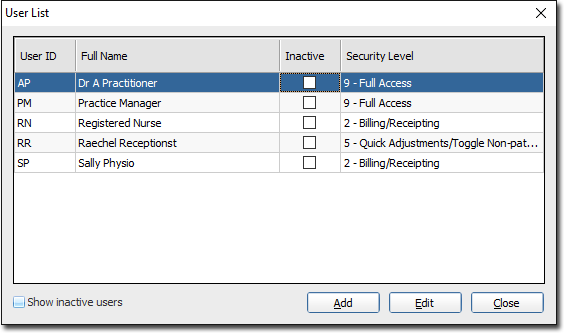
Select The User List window appears.
-
In the User Details window:
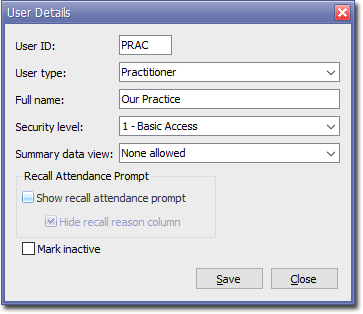
- Enter up to 4 characters into the User ID text box.
- The User ID (usually the user's initials) is utilised throughout MedicalDirector Pracsoft to identify users and practitioners.
- Each User ID must be unique. As this is an 'entity' account for your Practice, a suggested ID could be 'Prac'.
- The User ID (also referred to as an Initial Code) cannot be changed if transactions have been recorded on behalf of it.
- From the User Type menu, select Practitioner, as this account will be used for billing patients.
- Enter a name into the User Name text box. Remember, this is for your practice to bill, so use a name that's appropriate. In our example, we have called this user 'Prac'.
- From the Security Level menu, select 1 - Basic Access. For more information about security levels, see Security Levels.
- From the Summary Data View menu, select None Allowed.
- Leave the Recall Attendance Prompt deselected.
- Enter up to 4 characters into the User ID text box.
-
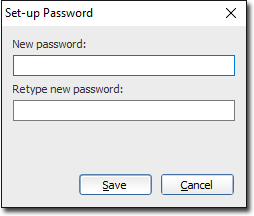
Click Save to confirm your selections. Enter and confirm a
password for this user in the Set-up Password window.
-
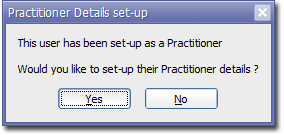
The Practitioner Details Set-up prompt appears. You will
need to configure some practitioner settings for the entity account, so click
Yes.
-
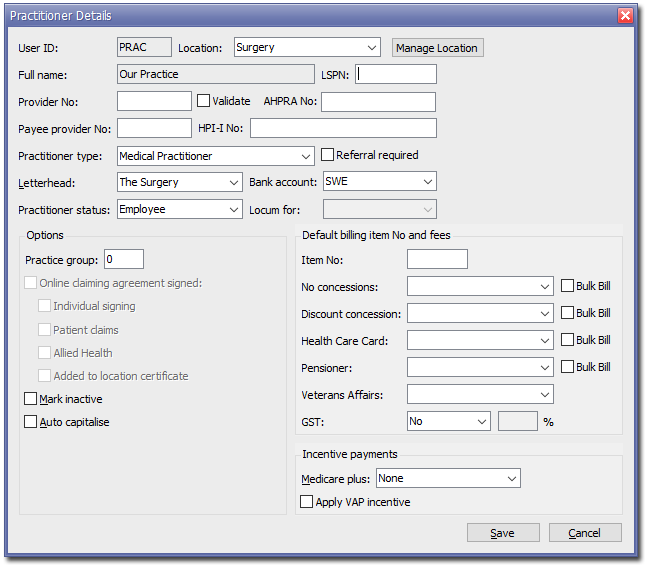
The Practitioner Details window appears. Ensure the following settings are in place:
- The Location field represents your practice.
- The LSPN field is left blank.
- The field is left blank.
- The Payee Provider No field is left blank. An entity account does not need to have a Provider Number recorded against its record because it cannot conduct online claiming.
- The Validate check box is not ticked.
- The AHPRA No field is left blank.
- The HPI-I No field is left blank.
- The Practitioner Type field reads 'Medical Practitioner'.
- The Referral Required check box is not ticked.
- The Practitioner Status field reads 'Employee'.
- The Practice Group field reads '0'. Note that typically this is left as '0' unless your practice uses Practice Groups. For more information, see Practitioner Details.
- The Medicare Plus field reads 'None'.
- The Apply VAP Incentive check box is not ticked.
Results
You can now bill patients using this account. For more information, see Recording Visits - Administrative 'Entity' Billing.
What to do next
If you use MedicalDirector Clinical in conjunction with Pracsoft, you must now locate the new user account in Clinical and flag it as inactive. Follow the instructions in Managing the Entity Account in Clinical.