
Creating a Batch File to Run a Backup
This procedure is used if you want to perform a backup as part of a larger custom process.
Before you begin
For example, you wish to perform other procedures including a backup. The steps below are based on you running Windows 7. The process for other Operating Systems may vary.
To create a batch file to run a backup:
Procedure
-
Click the Windows Start button.

-
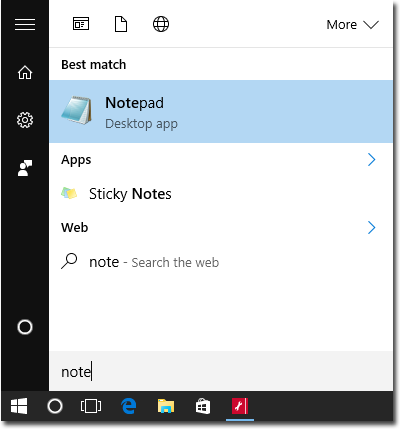
Type 'Notepad'. The Notepad application will appear in the list of available programs.
-
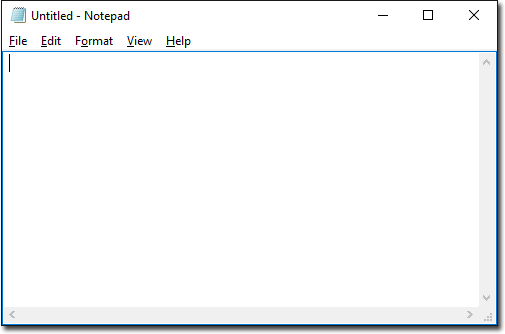
Click the Notepad application. The Notepad window is displayed.
-
Select All Files from the Save as type field and click Save.
Configurations (Backup) for Clinical/Pracsoft
The settings you select for each of the tabs within the MedicalDirector Backup utility can be saved as a configuration, giving you the opportunity to load and initiate different backup configurations when necessary. Configurations are managed via the New, Open, and Save buttons at the top of the MedicalDirector Backup utility window, as shown in the following image. Upon opening the MedicalDirector Backup utility, the settings for the last configuration used will selected automatically.
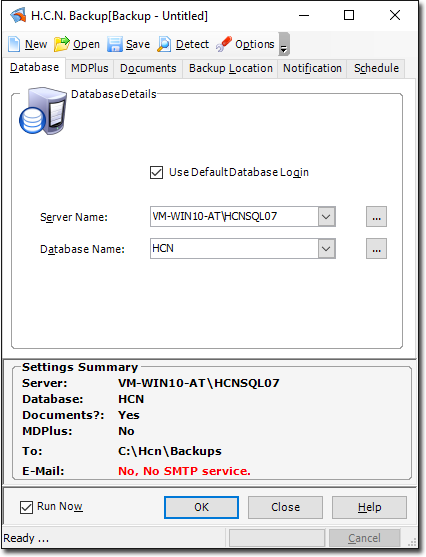
- Create a new configuration by clicking New. This action clears the settings from each tab.
- Load a saved configuration by clicking Open
- Save a configuration by clicking Save.
It is advisable that you give the configuration file a name that
represents the settings you have selected.
Click the Detect button at the top of the MedicalDirector Backup utility window to have the utility attempt to automatically determine and configure many of the settings available, including such things as your Server Name and available Databases.