
Adding New Patients
Add new patients to Pracsoft.
Before you begin
A patient must have a database record before they can be added to the Waiting Room.
Procedure
To create a new patient record:
-
Either:
- Click
 Add New Patient
 - Select .
- Press F6
- Click
-
In the Add New Patient window, enter the new patient's
information.
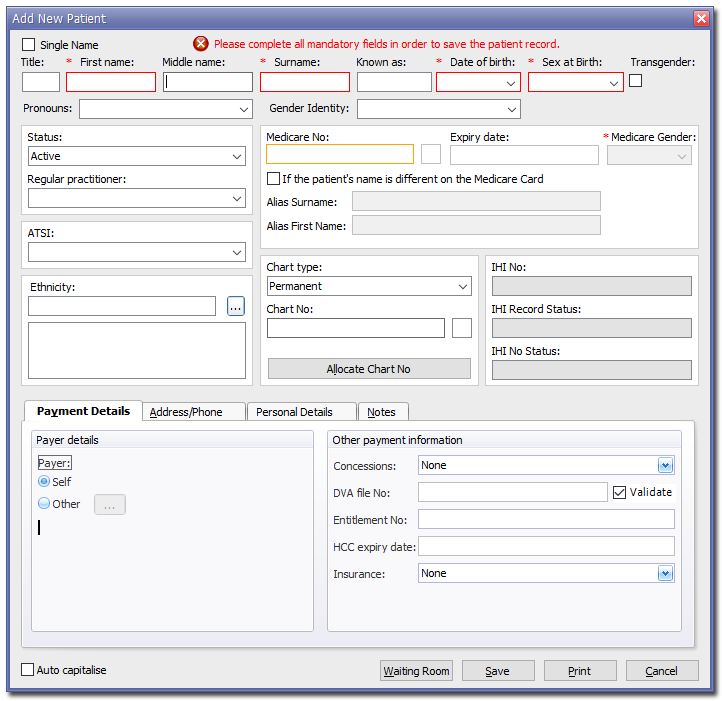
For more information about the fields, see Editing Patient Records.Tip:If you have the patient's Medicare Card, quickly add their Medicare number: click in the Medicare No field and swipe their card. -
If your Pracsoft version is
configured to show referral information, complete the information in the
Referral Details window.
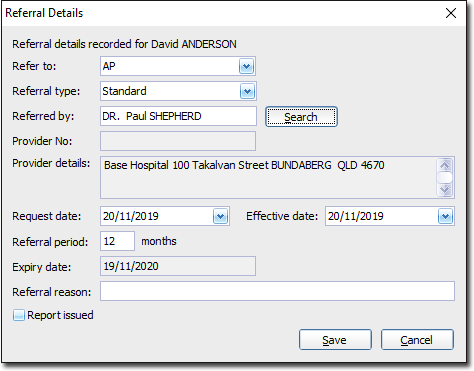
For more information see Global Settings.