Delete appointments that are no longer required.
About this task
You can delete appointments from a single timeslot, multiple timeslots, or delete
part of an appointment that spans multiple timeslots. If you delete the middle time slot of
an appointment that spans multiple time slots, the remaining time slots are converted into
separate appointments.
Procedure
-
Open the Appointment
module, either:
- Click
 Appointment
Book.
Appointment
Book.
- Select .
-
If you have multiple
Appointment Books in use, select the Appointment Book you
want to use via the associated drop-down list.
-
Select the practitioner for whom you want to
delete an appointment from the list of practitioners.
-
If the appointment is a Telehealth appointment, delete its
Telehealth Consult component.
-
To delete an appointment from a single timeslot:
-
Select the appointment.
-
Either:
- Select or
- Press Delete on your keyboard.
-
To delete an appointment spanning multiple timeslots:
-
Select one of the cells in the appointment.
-
Press Shift+Delete on your keyboard.
-
To delete part of an appointment spanning multiple timeslots:
-
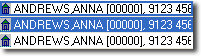
Locate the appointment that spans multiple time slots. The example used here
is for Anna Andrews' appointment between 10:15 and 11:00 on Saturday.
-
Click-and-drag your mouse down the appointment period until you reach the
time slot you want to delete. This could be the first time slot in the set, or
it could be a time slot within a set.
-
Either:
- Right-click the time slot you want to delete, and select
Delete Single, or
- Press the Delete key on your keyboard.
-
(Optional) If the patient intended to attend in relation to a recall recorded in
Clinical, and you
flagged
this when their appointment was originally scheduled, Pracsoft displays a message that the
recall or reminder will be reverted. Click OK.
-
Depending on the Appointment Book settings, the Delete
Appointment window might be displayed. In the Reason for
Deletion field, enter the reason why you are deleting the appointment.
Click Yes.
Results
The appointment or part of the appointment is deleted.