
Checking a Patient's Contact Details
When a patient arrives, review their contact details, mobile number, and opt them into receiving SMS messages if they grant permission.
Procedure
-
In the
 Waiting Room, right-click the patient and select Send SMS to
Patient.
Waiting Room, right-click the patient and select Send SMS to
Patient.
-
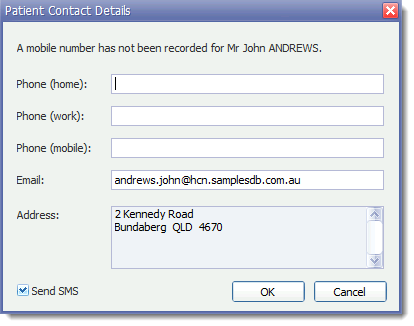
In the Patient Contact Details window, review the
patient's contact details.
-
To opt the patient into receiving SMS messages from your practice:
- In the Phone (mobile) field, enter a mobile phone number.
- Set Send SMS.
- Click OK.