
Editing Fee Columns
Customise the columns displayed in the Fee Listing window.
Before you begin
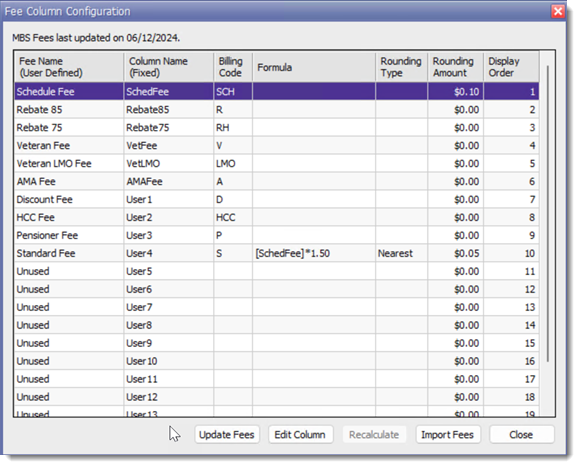
Each row in the Fee Column Configuration window represents a different fee
column in the Fee Listing window. Besides the supplied
fee rows, there are 'unused' rows towards the bottom of the list that you can use to
create customised fees.
Procedure
To customise fee columns:
-
In the Fee Column Details window, complete the required
information.
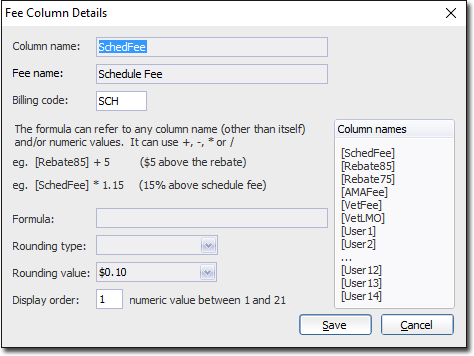
- Enter a Fee Name.
- Enter a Billing Code.
- (Optional) Enter a formula used to calculate the fee.
When referencing a column name in a formula (as in the example above), the column name must be entered exactly as it appears in the reference list and must be enclosed in square brackets. For example, for a formula you want to be 1.5x the Schedule Fee (i.e. 50% greater), type [SchedFee]*1.5. The mathematical operators +, -, * and / are supported. If you require a complex formula, help may be found on MedicalDirector Pracsoft's User Forum, accessible from the MedicalDirector website.
- (Optional) Select a Rounding Type and Value as appropriate from the drop-down lists supplied. For example, using a combination of Rounding Type and Value, you could round-up fees to the nearest 10 cents.
- Enter the Display Order. This field affects the position of this fee column in the Fee Listing window.
- Click Save