
Appointment Book Options
Global and workstation-specific Appointment Book options are managed from the Appointment Book.
Select .
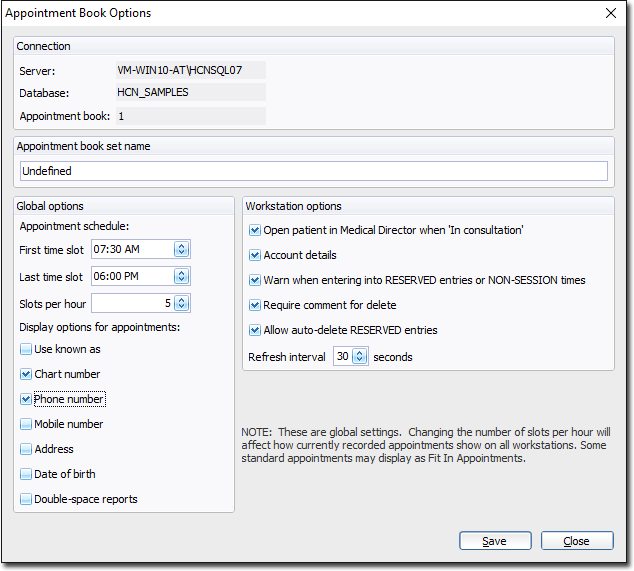
| Items of interest on this window | |
|---|---|
| Server | The name of your server computer on which your Pracsoft database resides. |
| Database | The name of the Pracsoft database you are currently logged in to. |
| Appointment Book | The Appointment Book whose options you are viewing. You can create multiple Appointment Books and assign names to them. However, in the Options window Pracsoft refers to each Appointment Book by its number. |
| Appointment Book Set Name | The Appointment Book. Appointment Books are named when you create them. You can modify the name here. |
| Global Options | |
|---|---|
| - First Time Slot - Last Time Slot - Slots per hour | The time of the first appointment (First Time Slot) and last appointment (Last Time Slot). You can also indicate how many slots there are per hour. For example, if you enter 4, there will be 4 appointment time slots per hour and each slot will have a duration of 15 minutes. |
| - Use Known As - Chart number - Phone number - Mobile number - Address - Date of Birth | Displays the patient's details in the Appointment Book. This information is recorded via the Patient Details window. |
| Double-Space Reports | Prints a blank line between each appointment when printing the appointment list. |
| Workstation Options | |
|---|---|
| Open Patient in Clinical when In Consultation | For sites also using Clinical, if this option is set, when a patient in the Appointment Book is flagged as In Consultation, the patient's record is opened automatically in Clinical. This occurs only on the same computer. |
| Refresh Interval | Every time you change a record in the Appointment Book, the view is refreshed instantly. If the Appointment Book is unattended, Refresh Interval determines how often the view is refreshed. |
| Account Details | Displays the patient's outstanding account details when you schedule an appointment for them. |
| Warn when entering into RESERVED entries or NON-SESSION times | Displays a warning when you attempt to schedule an appointment in a time slot that is not normally available for appointments. |
| Require comment for delete | Prompts you to provide a reason when deleting an appointment. This can be important for the surgery's legal and accreditation purposes. |
| Allow Auto-Delete RESERVED entries | Allows you to delete reserved appointment slots without entering a reason for the deletion. |