
Send Appointment Reminders via Email
Email reminders to patients to remind them of upcoming appointments.
Procedure
-
Open the Appointment module, either:
- Click
 Appointment
Book.
Appointment
Book. - Select .
- Click
-
In the Email Reminders window, in the upper section, set
Select on the patients you want to send an email
reminder to. You can also click Select All or
Clear All at the bottom of the window.
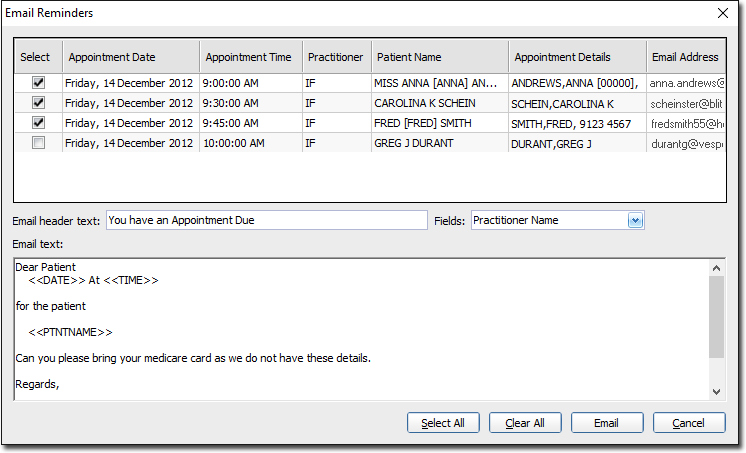
- To send an email to a patient, they must have an email address recorded. If they do not, Pracsoft displays a message when you attempt to tick their Email check box in this window. Similarly, Select All selects only the patients who have recorded email addresses.
- You can record a temporary email address for a patient by double-clicking in the Email Address field associated with the appointment you want to send a message about. This email address is used only for the selected appointment and is not saved in the patient's record.