A reserved appointment is a period you can keep spare, for any purpose.
Procedure
To add a Reserved Appointment:
-
Open the Appointment module, either:
- Click
 Appointment Book
- Select .
-
If you have multiple Appointment
Books in use, select the Appointment Book you want to use via the
associated drop-down list.
-
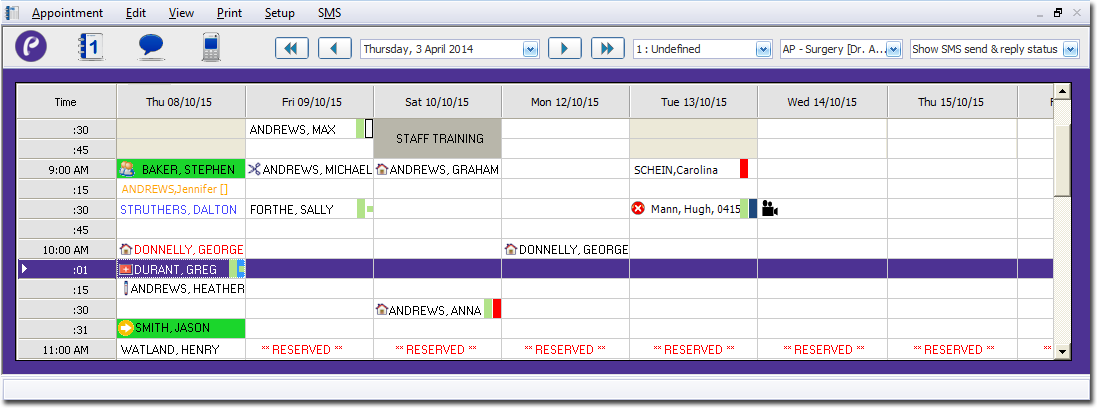
Select the Practitioner for whom you want to assign the reserved appointment, using the associated drop-down list. The image above indicates that the appointment schedule for Dr. A Practitioner is currently selected.
-
Then either:
- Select , or
- Right-click a free appointment slot and select Add Reserved
Appointment
-
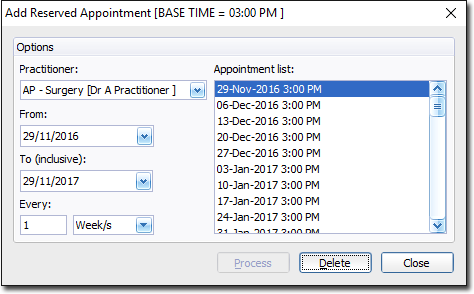
In the Add Reserved Appointment window, select a start and
end date for the period of reserved appointment slots.
-
Indicate how often you want the reserved appointments to recur. The example above shows that the appointments will recur every week. Other options include minutes, hours, days, months and years.
-
Click Process.
A list of reserved appointments is displayed in the Appointment
List section. If possible, reserved appointments are scheduled for the
same time slot as the original, or at the next available time slot.
-
To delete a specific appointment from the list of reserved
appointments, select the appointment from the list and click
Delete.
You cannot select multiple appointments simultaneously.
-
Click Close to confirm your selections and close the window.
Note: After this window is closed, the recurring appointments
are treated as individual appointments; it is no longer possible to deal with them
as a group of recurring appointments.
Results
The selected appointment slot is reserved.
What to do next
Each day when you open the Appointment Book, you will be
given the option to clear any reserved appointments for the day.